ScholasticCloud

Student Portal
Walkthrough

A guided tour of what students (and their parents) see when they log in — their information, grades, assessments, and school fees, all in one place.

The journey

One login. Five places to go.

1
Sign in
Students use the same login page as staff — the portal recognizes them and shows only their menus.
2
Dashboard
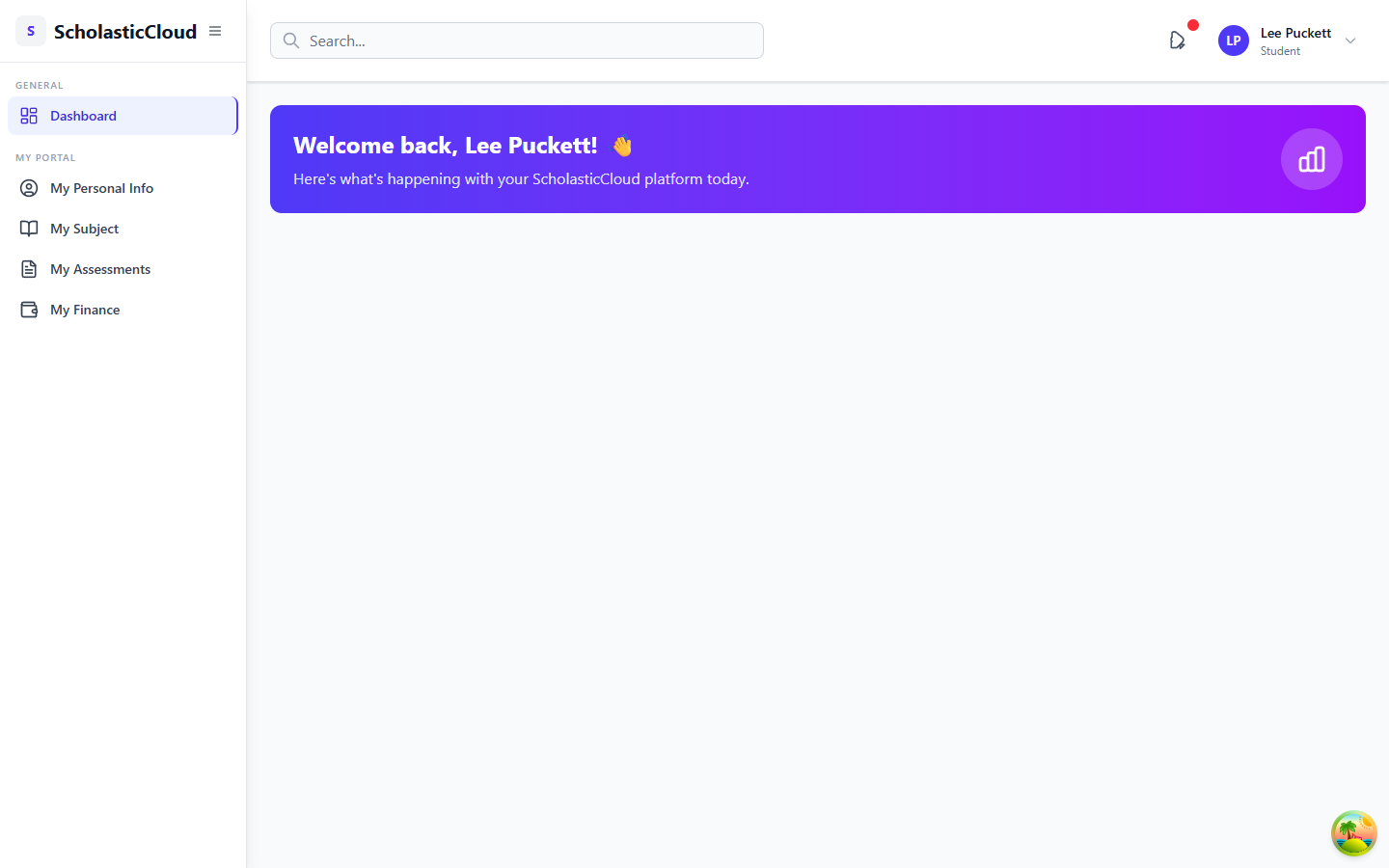
A personal landing page that greets the student by name.
3
My Personal Info
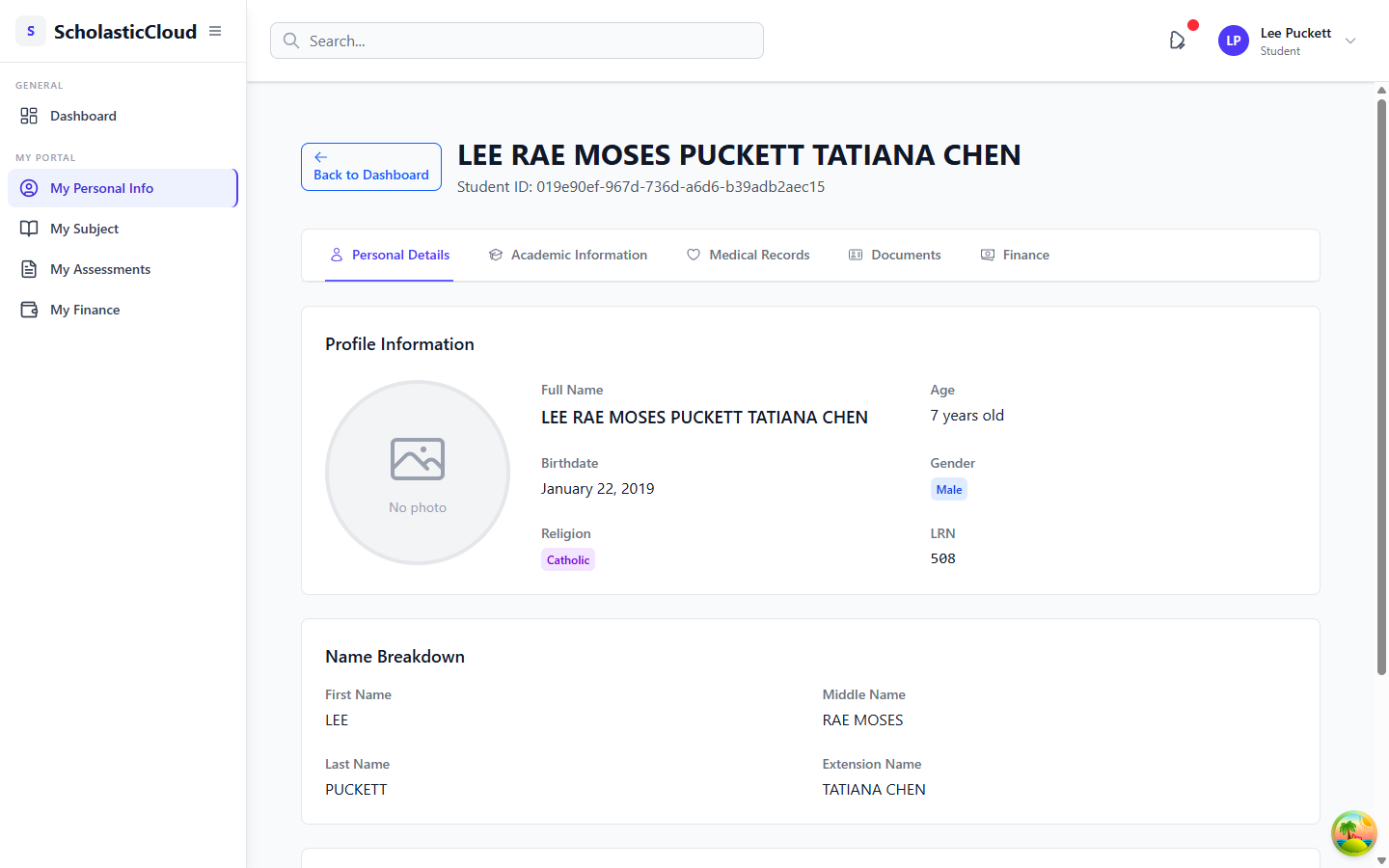
Profile, academic information, medical records, and documents.
4
My Subject & My Assessments
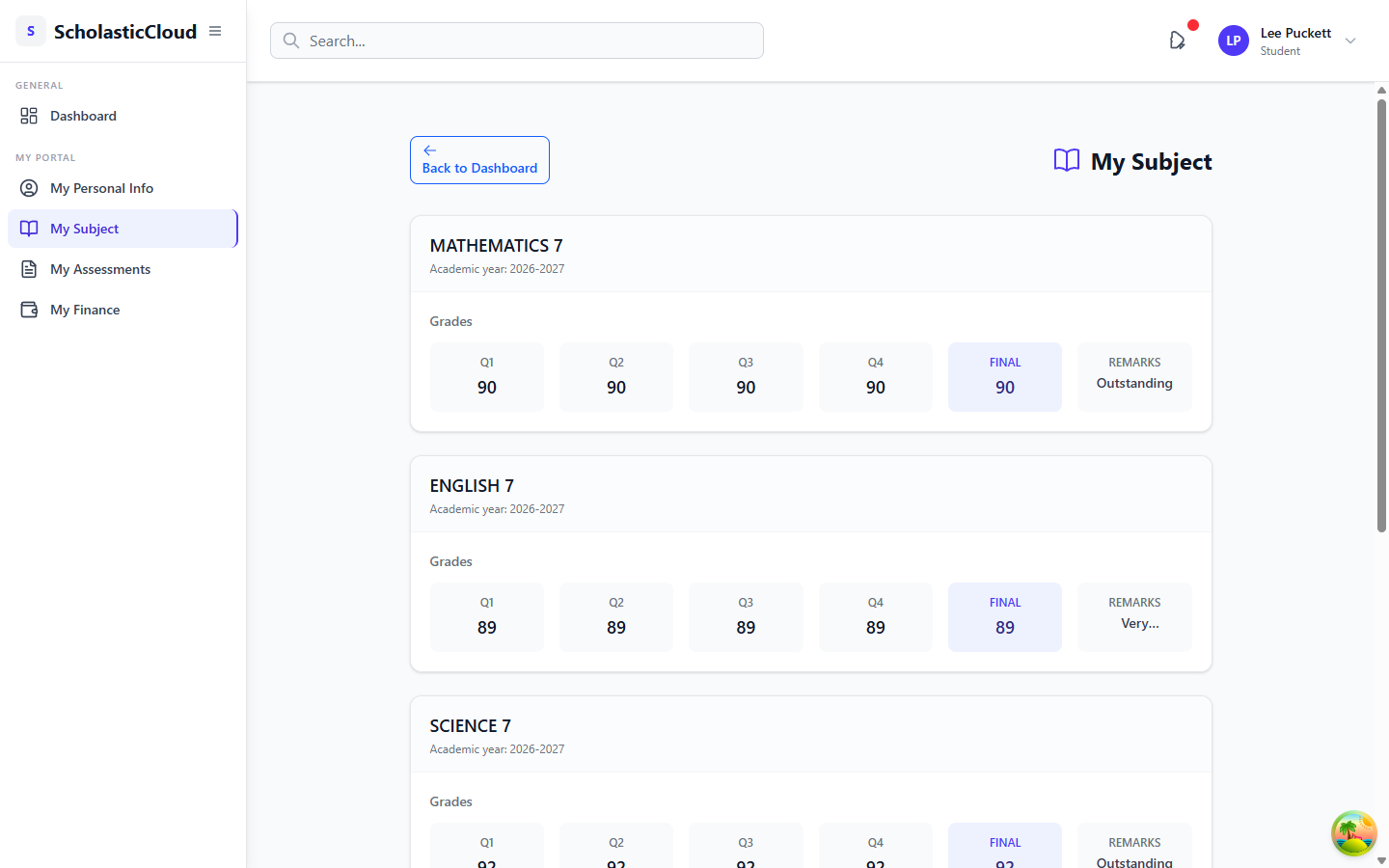
Quarterly grades per subject, plus quizzes and assignments they can answer online.
5
My Finance
Payment plan selection, balance, Notice of Account, installment schedule, and online payment.
Step 1 · Getting in

One simple login for everyone

Same door, different rooms. Students sign in at the same page as teachers and staff — no separate app or URL to remember.
Role-aware. The system detects a student account automatically and builds a student-only sidebar.
Secure. Student credentials live in their own authentication table, separate from staff accounts.
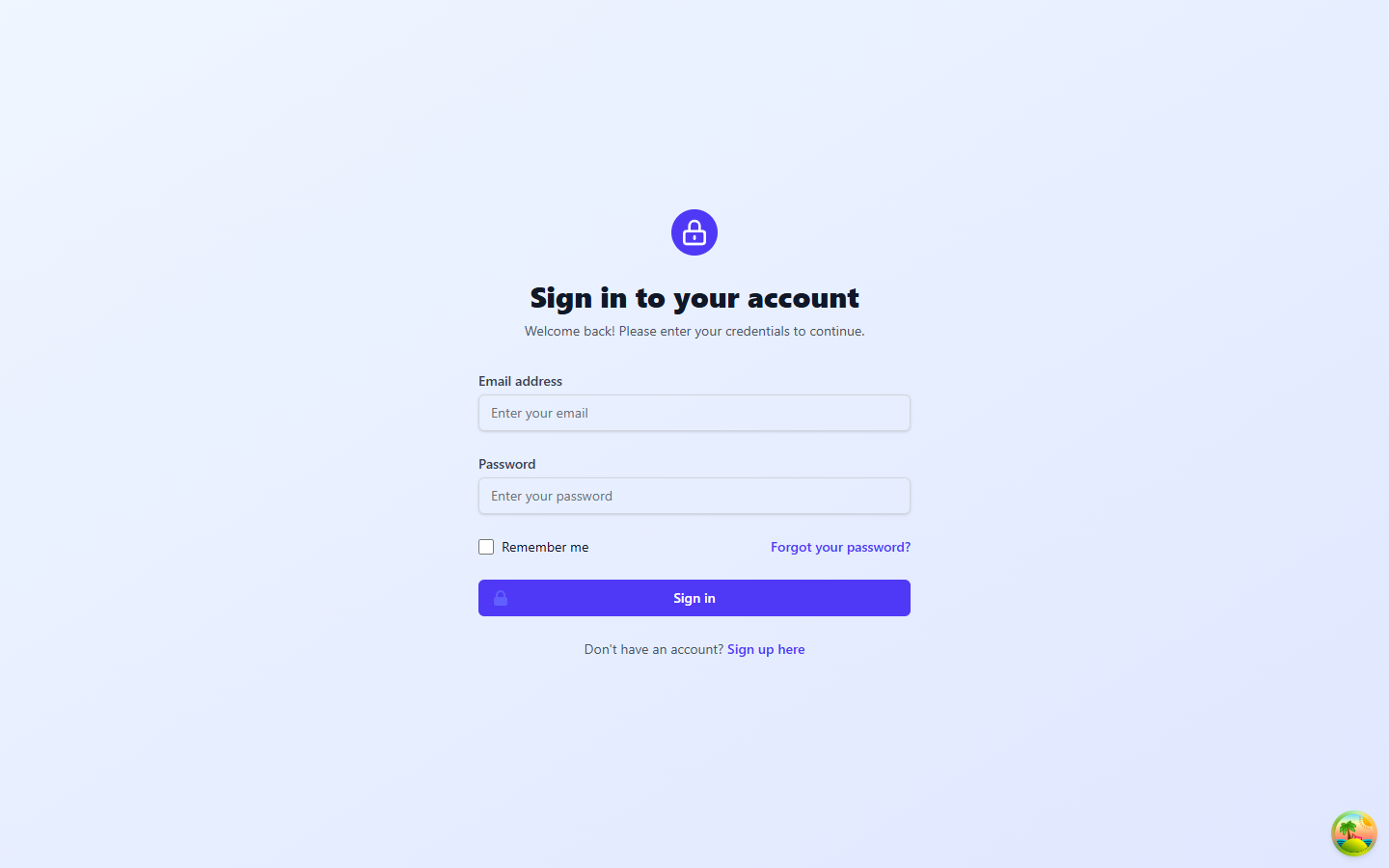
Login page
Step 2 · Dashboard

A personal welcome

The student's home base. Greets them by name as soon as they're in.
The sidebar is theirs. Notice the “My Portal” section — only the four student menus appear. Admin and teacher tools are invisible to them.
Quick search and notifications are always available in the top bar.
Student dashboard
Step 3 · My Personal Info

Everything the school knows, transparently

Five tabs in one page: Personal Details, Academic Information, Medical Records, Documents, and Finance.
Profile at a glance — full name, birthdate, age, gender, religion, and LRN.
For parents: this is where they verify the school has the correct records for their child.
My Personal Info page
Step 4 · My Subject

Grades, quarter by quarter

Every enrolled subject is a card showing Q1–Q4 grades, the final grade, and the remark (Outstanding, Very Satisfactory, …).
No more waiting for report cards. Grades appear here as soon as teachers post them.
Filtered per academic year, so past years stay accessible.
My Subject page with quarterly grades
Step 5 · My Assessments

Take quizzes and assignments online

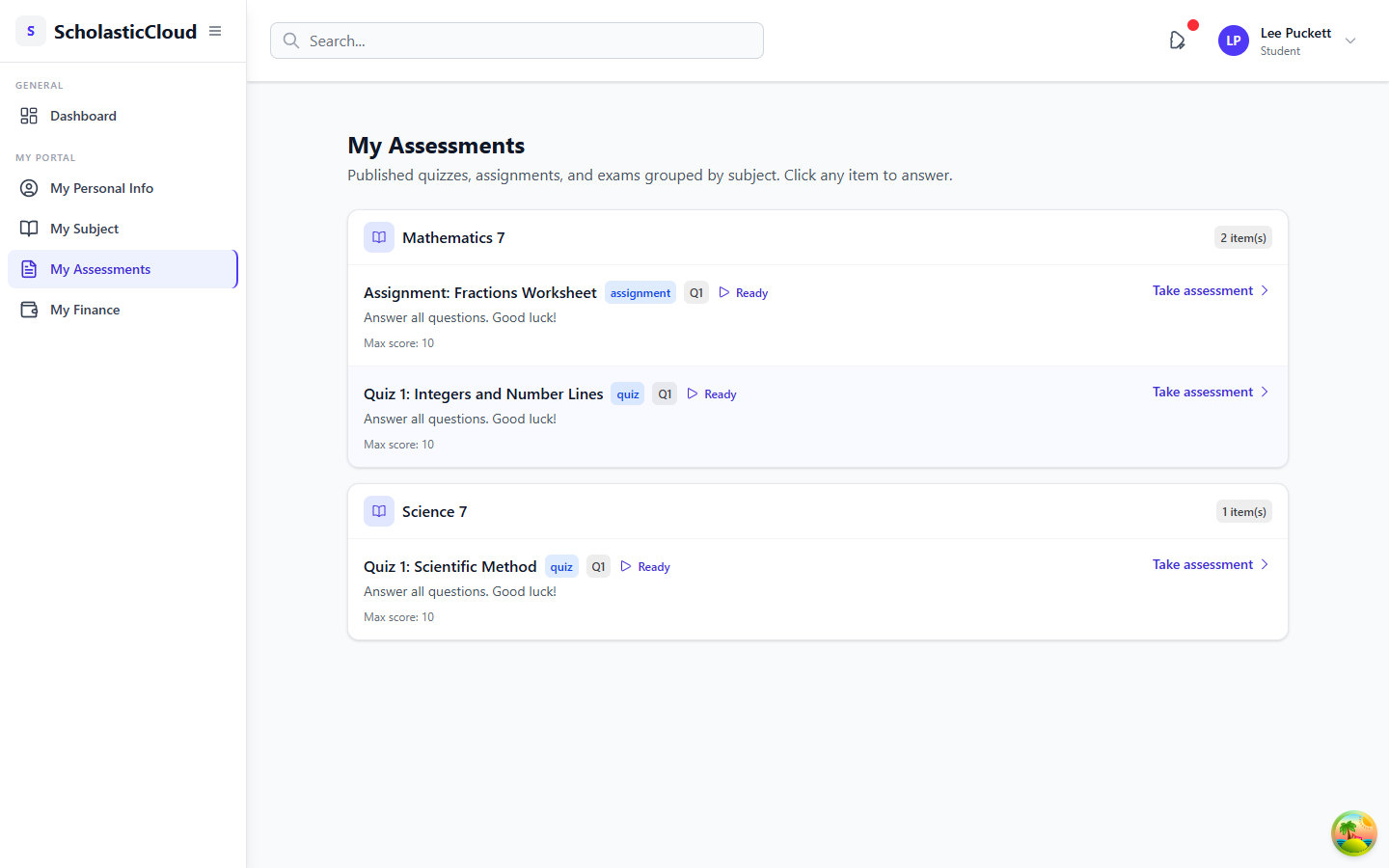
Grouped by subject. Published quizzes, assignments, and exams show up with quarter, status, and max score.
One click to answer. “Take assessment” opens the questions right in the portal — true/false, multiple choice, short answer, essay.
Auto-scored where possible, and results feed straight into the teacher's class record.
My Assessments page
Step 6 · My Finance

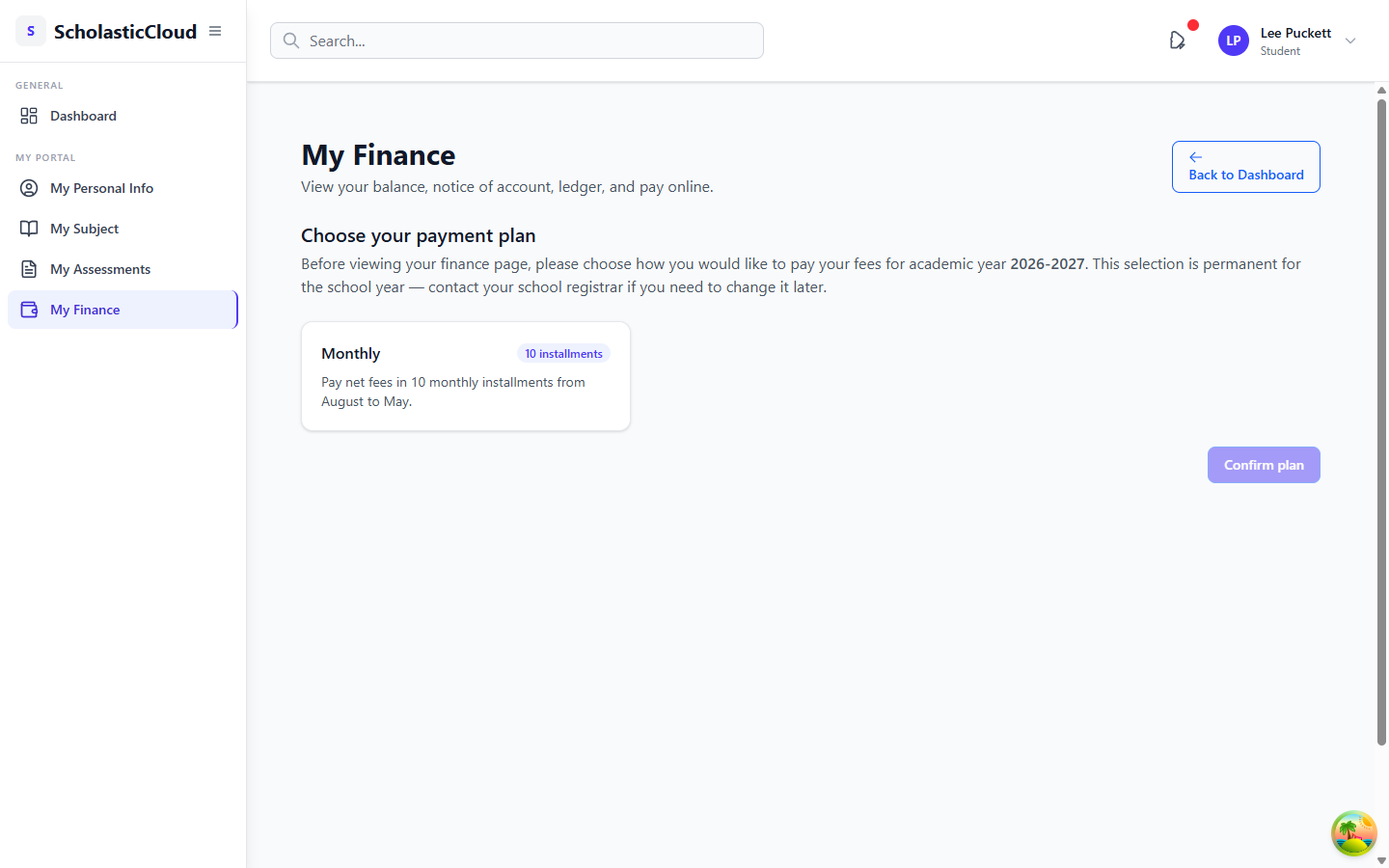
First visit: choose a payment plan

New this release. Before seeing the ledger, the family picks how they'll pay the year's fees — e.g. Monthly or Quarterly.
Plans are defined by the school in Finance > Payment Plans, so each campus controls its own offerings.
One choice per school year. Changing it later goes through the registrar — keeping the ledger consistent.
Payment plan selection
Step 6 · My Finance

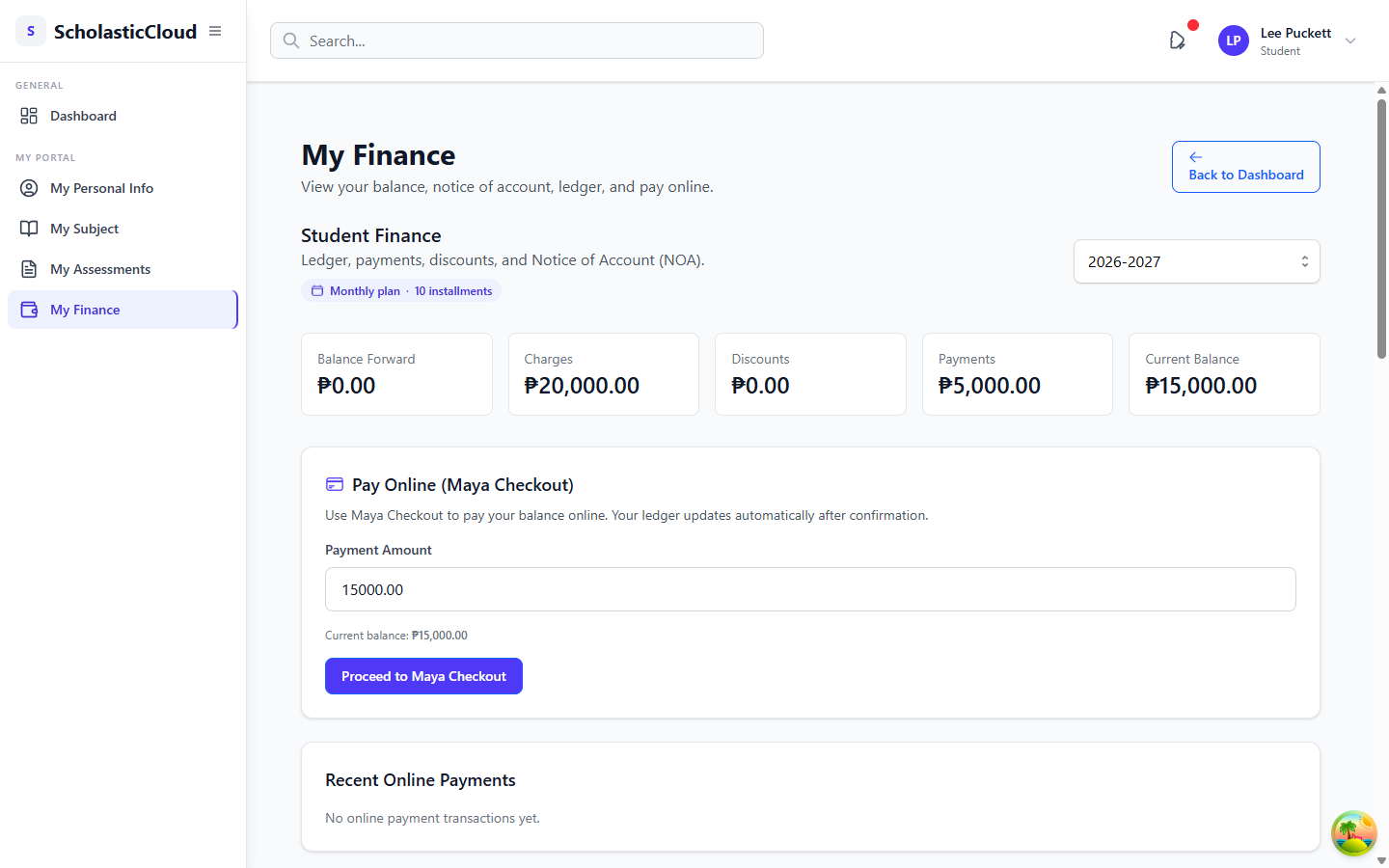
The family's complete money picture

Balance summary — charges, discounts, payments, and current balance up top.
Notice of Account with the fee breakdown, downloadable as PDF.
Installment schedule shows each due date, the amount, and what's already paid.
Pay online with Maya. The ledger updates automatically after a confirmed payment.
My Finance page
What's next

The road ahead

Parent Portal
Dedicated parent accounts to follow their children's grades, attendance, fees, and announcements — today, parents view through the student's login.
Richer dashboard
Upcoming assessments, due installments, and announcements surfaced right on the landing page.
Notifications
Alerts when grades are posted, assessments open, or an installment is coming due.

Questions? Let's open the portal live. 🎓